Record a reaction video on your phone
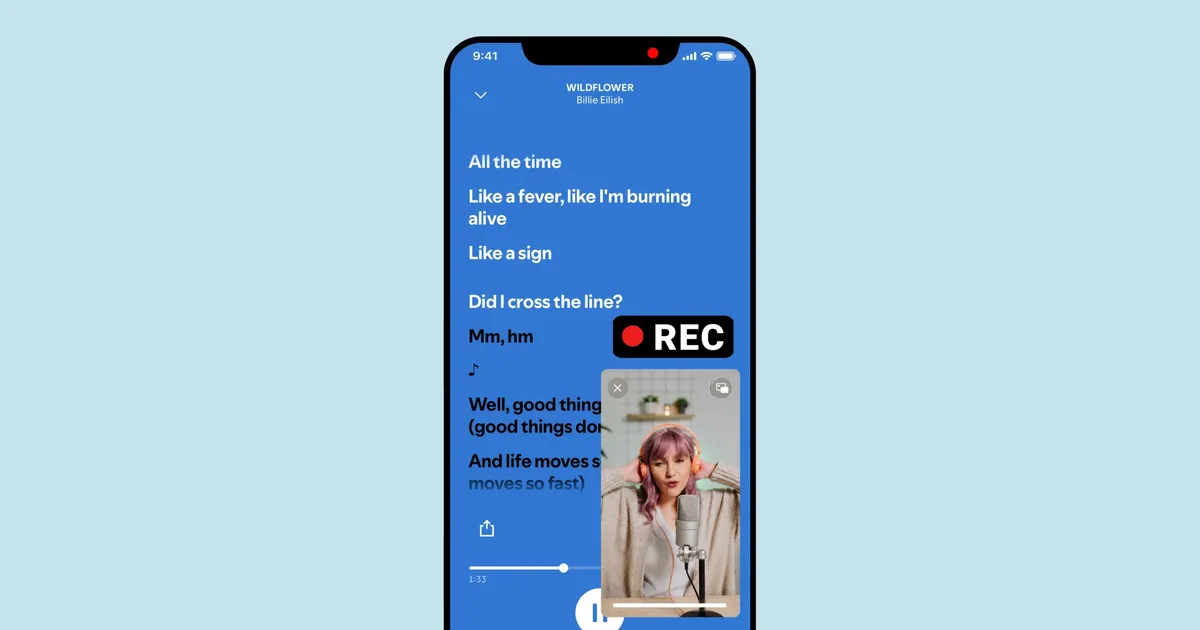
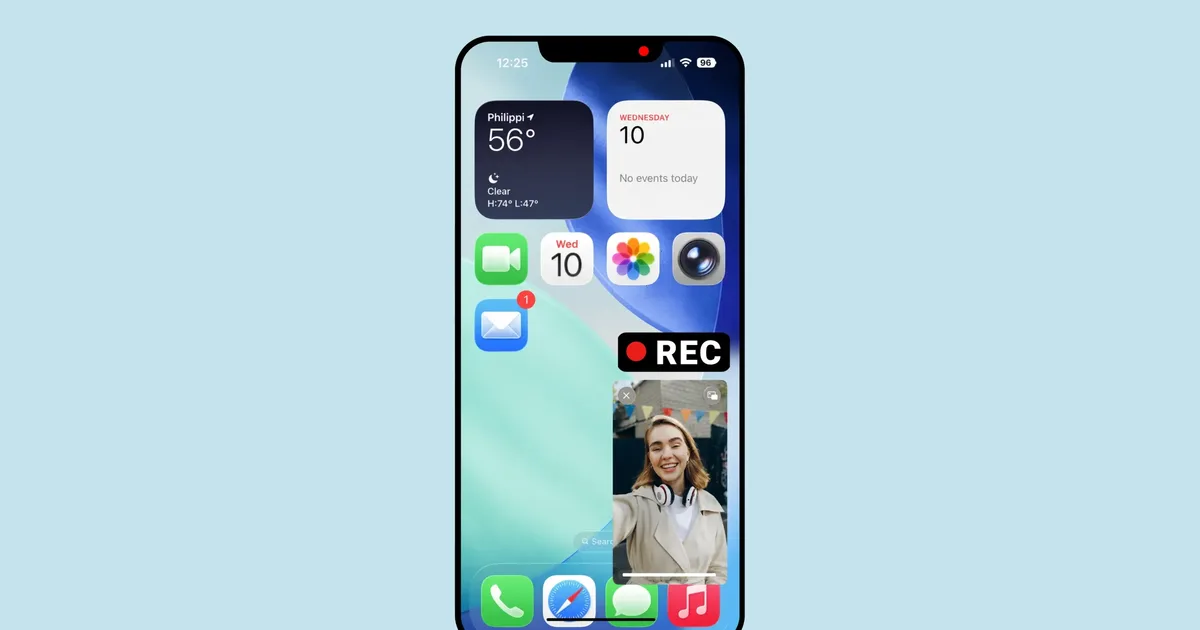
On one phone you have three options. Keep a floating camera over the video and combine the two afterwards, use the platform's own Duet or Stitch, or screen record with a face cam on top.
 The Float Cam team · 2 min read
Three ways to film your reaction on one phone
| Method | What you get | Best for |
|---|---|---|
| Floating camera (Float Cam) | Your face as its own camera video, the original clip untouched | Edited reactions to YouTube and other long videos |
| TikTok Duet or Stitch | One finished TikTok, your video next to the original | Quick reactions to TikToks |
| Screen recorder with a face cam | One file of the screen with your face in a corner | Reacting to apps, games or websites |
How to do it with Float Cam
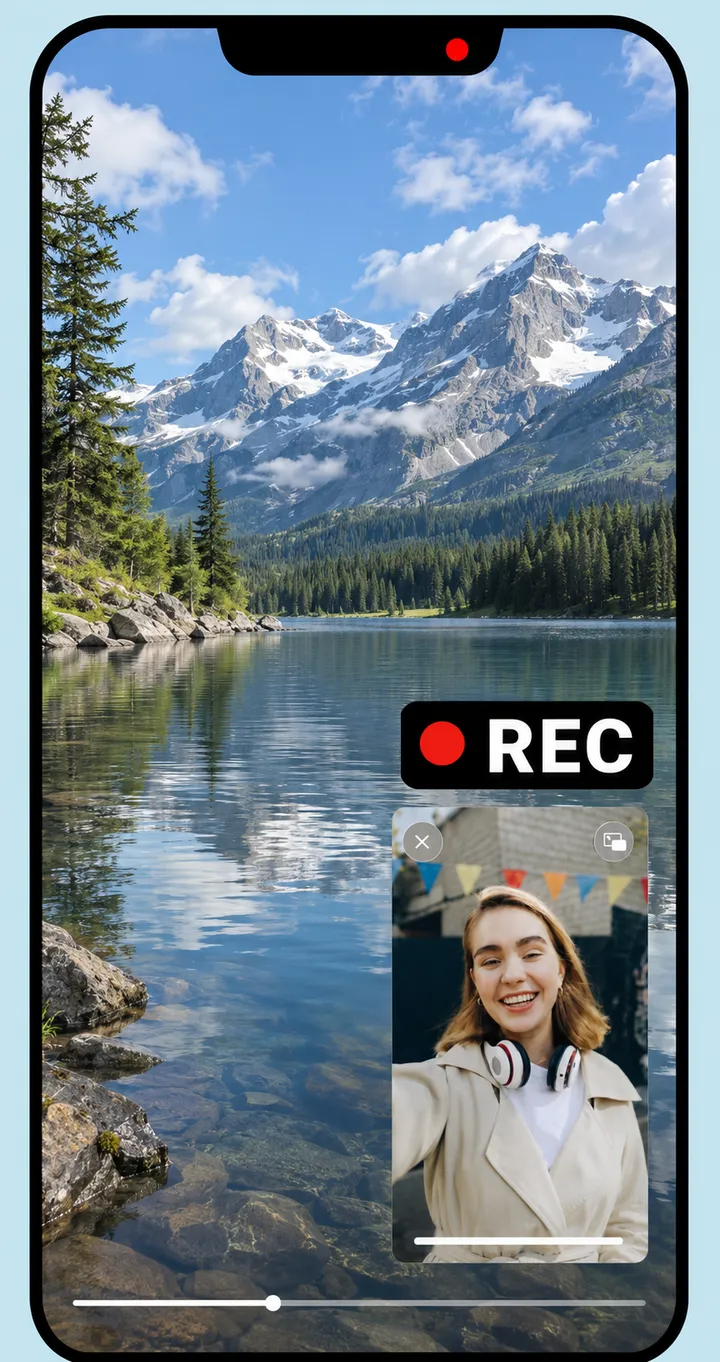
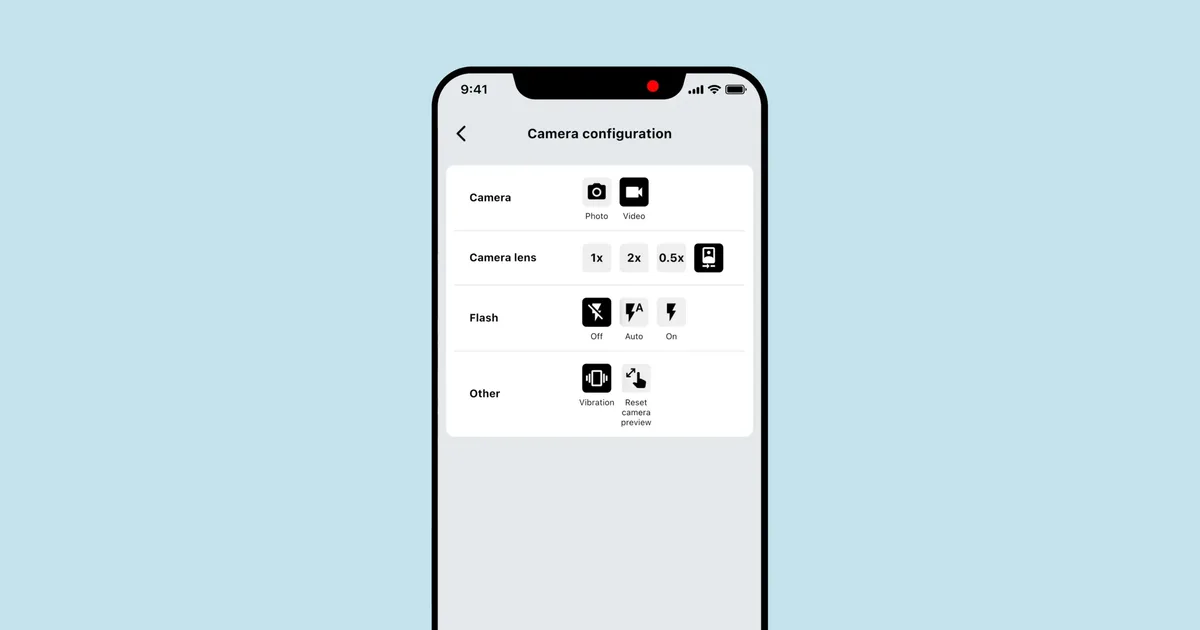
- Open Float Cam, choose the front camera and open the floating camera window.
- Open the video in YouTube, TikTok, Photos or a browser, and play it full screen.
- Drag the camera window to a corner and tap play in it to start recording.
- React. Tap pause in the window when the video ends.
- In your editor, place your camera video over the original clip and line them up by the first sound.
On iPhone this needs iOS 17 or later.
Getting the sound right
Your reaction is only useful if your voice and the video line up. Play the video out loud from the phone's speaker: Float Cam's microphone records it along with your voice, which makes lining up the two clips easy. If you wear headphones, only your voice is recorded and you'll need the original audio from the source file. The phone's volume buttons set how loud the video is in your recording, so turn it down until your voice is clearly louder.
What to watch out for
- One floating window at a time on iPhone. iOS shows one Picture in Picture window, so watch the video full screen in its own app rather than in YouTube's mini player.
- Don't open another camera. Starting the camera in TikTok or Instagram takes the camera away from Float Cam until you close it.
- Rights. Reposting someone else's clip may need their permission or fall under your platform's rules on reactions. Duet and Stitch handle this inside TikTok.
Questions people ask
How do I record a reaction video on my iPhone while watching a video?
Open a floating camera app such as Float Cam, start its camera window, then play the video full screen in YouTube, TikTok or Photos. The window records your face over the video on iOS 17 and later. Afterwards, combine your camera video with the original in an editor like CapCut or iMovie.
How do I record a reaction video on Android while watching YouTube?
Start Float Cam's floating camera, then open YouTube and play the video. The camera window stays on top and records you. Some phones stop apps that work in the background; if yours does, open the video in Float Cam's built-in browser instead. Combine the clips afterwards in an editor.
Can I record my face and the video in one file?
Yes, with a screen recorder that has a face cam, or by keeping Float Cam's floating window on screen while you use the phone's own Screen Recording. You get one file at screen quality with your face in a corner. A floating camera gives you a cleaner, separate camera video to edit instead.
Why is there no sound from the video in my reaction recording?
You were probably wearing headphones, so the video's sound never reached the microphone. Play the video through the phone's speaker and the microphone records it together with your voice. You can also add the original audio in your editor and keep your camera recording for your voice.
Keep filming while you use your phone
Float Cam keeps a floating camera window on screen and records while you do anything else. Free to download on iPhone, iPad and Android.